

LLMs
The LLMs screen lists the model providers your agents can reach: the AI services Riptides recognizes, and the models each one offers. These are the providers you allow or restrict in an access policy, and the ones the Activity Monitor attributes model usage to.
Open it from Agentic → LLMs in the sidebar.
Built-in providers
Section titled “Built-in providers”Riptides ships with the major LLM providers already defined, so you can start writing policy without registering anything. The built-in set includes:
- Anthropic (
api.anthropic.com): Claude Opus 4.8, Claude Sonnet 5, and Claude Haiku 4.5 models - OpenAI (
api.openai.com): GPT-5, o4-mini, and GPT-4.1 models - Mistral, DeepSeek, Cohere, Groq, Fireworks, Together, Perplexity, xAI (Grok), OpenRouter, and more
Each provider is matched by its API endpoint (for example api.anthropic.com:443) and carries the list of models it offers.
What you see
Section titled “What you see”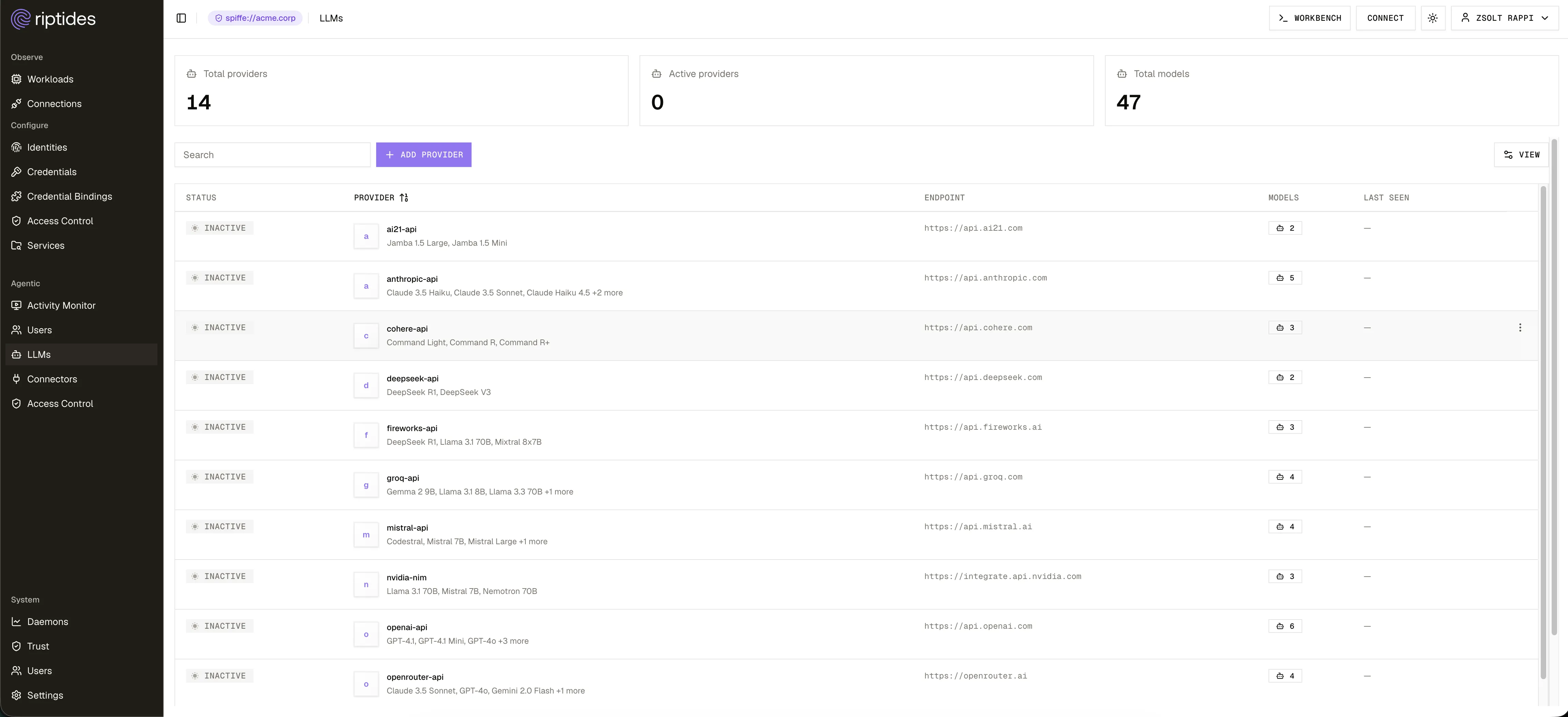
Three cards summarize the inventory: Total providers, Active providers, and Total models.
The table lists each provider with:
- Status: whether the provider is active.
- Provider: its name and a summary of its models.
- Endpoint: the API host it matches.
- Models: how many models it offers.
- Last seen: when traffic to it was last observed.
Search by provider name.
Add a provider
Section titled “Add a provider”Use Add provider to register an LLM service that is not built in, for example a self-hosted or regional endpoint (such as an Azure-hosted OpenAI deployment). You give it a name, the endpoint it should match, and the models it offers.
Edit or remove a provider
Section titled “Edit or remove a provider”Each row’s ⋯ menu lets you Edit a provider (its endpoint and model list) or Remove it. Removing a provider also removes it as a target from any policy that referenced it.
Click a provider to open its detail panel, which shows its status, endpoint, and the full list of registered models, along with edit and remove actions and a YAML view.
How LLMs are used in policy
Section titled “How LLMs are used in policy”The models listed here are exactly the choices you get when restricting an agent in Access Control. Adding an LLM rule for a provider restricts that provider to the models you list; models of that provider you do not list are blocked, and the block shows up in the Activity Monitor. Providers without a rule stay fully allowed. Keeping this inventory accurate, especially the model list on each provider, keeps the policy editor’s choices correct.
Next steps
Section titled “Next steps”- Connectors: the MCP servers and tools agents can use.
- Control agent access: restrict which models an agent may call.